
How To Generate Course Progress Reports On Behalf Of Teachers
As an administrator in CrownSIS, managing teacher functions, particularly the generation of progress reports, is a crucial responsibility. These reports help track student performance and provide valuable insights for both teachers and parents. Here's a step-by-step guide on how to manage the Progress Reports function within the Teacher Functions section of CrownSIS.
Step 1: Accessing Teacher Functions
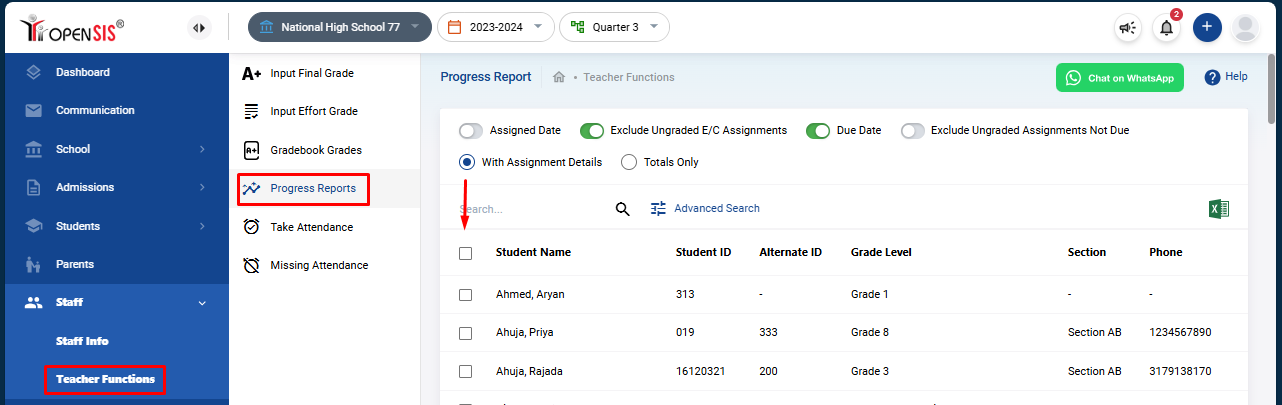
To manage the Progress Reports for teachers, follow these steps:
This will bring up a list of students for whom you can generate progress reports.
Step 2: Selecting Students
After accessing the Progress Reports section, you'll see a list of students. You need to select the students for whom you want to generate the progress reports. You can select multiple students at once based on your needs.
Step 3: Customizing the Progress Report
CrownSIS provides several options to customize the progress reports according to your requirements:
-
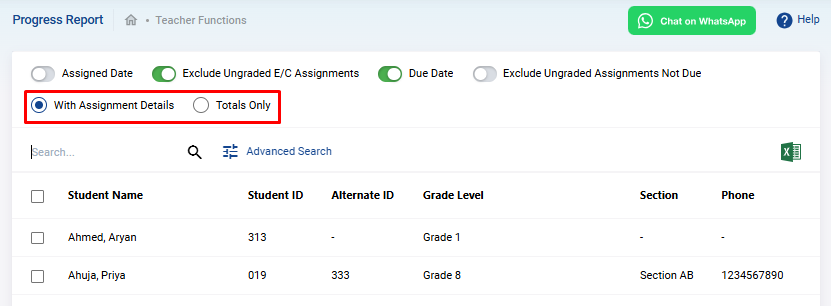
Format Selection :
- With Assignment Details : This format will include the details of each assignment within the course sections the student is studying. It will show progress on each assignment that the teacher has assigned.
- Totals Only : This format provides a summary of the total progress for each course section, without displaying individual assignment details.
-
Additional Customization Options :
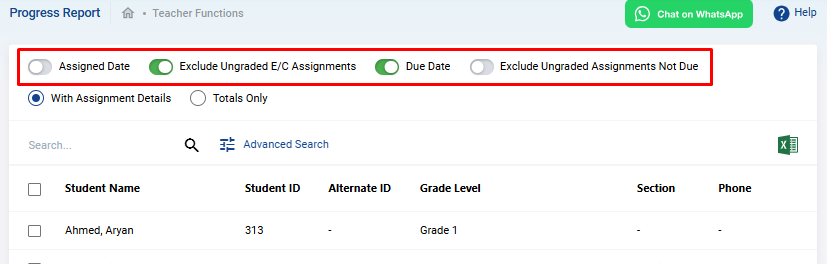
- Assigned Date : If you select the "With Assignment Details" format, you can choose to include the date when each assignment was assigned.
- Exclude Ungraded E/C Assignments : This option allows you to exclude assignments that haven't been graded but whose due date has passed, ensuring they aren't counted in the overall progress.
- Due Date : This option, available with the "With Assignment Details" format, lets you display the due date for each assignment.
- Exclude Ungraded Assignments Not Due : This option excludes assignments that are ungraded and not yet due from the overall progress calculation.
These switches enable you to tailor the progress report to meet specific educational needs.
Step 4: Generating the Progress Reports
After customizing the report using the available options, you need to select the students and click on "Create Progress Reports for Selected Students". This will generate the progress reports based on the selected options and students.

Step 5: Reviewing and Distributing the Reports
Once the reports are generated, review them to ensure they align with your expectations. You can then distribute the reports to students, parents, or other relevant stakeholders.
By following these steps, administrators can efficiently manage the Progress Reports function within the Teacher Functions section of CrownSIS, ensuring that student performance is accurately tracked and reported.