
How To Add Or Edit Gradebook Grades On Behalf Of Teachers
In CrownSIS, administrators have the ability to manage various teacher functions, including editing gradebook grades for students. This article guides you through the process of accessing and managing gradebook grades for a selected teacher.
Step 1: Access the Teacher Functions
- Log in to your CrownSIS account as an administrator.
- From the navigation menu, go to Staff.
- In the left submenu, select Teacher Functions.
Step 2: Access Gradebook Grades
- Under Teacher Functions, click on Gradebook Grades.
- A list of teachers will appear. Select the teacher whose gradebook you wish to manage.

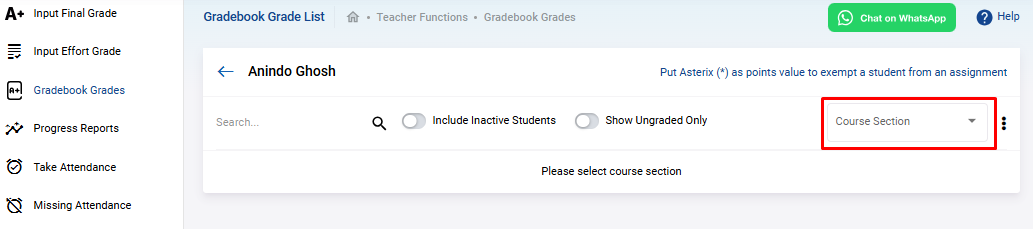
Step 3: Select the Course Section
- After selecting the teacher, choose the Course Section for which you want to view and edit the gradebook grades.
- The system will display a list of students enrolled in that course section along with the assignments they were given and the grades they received.
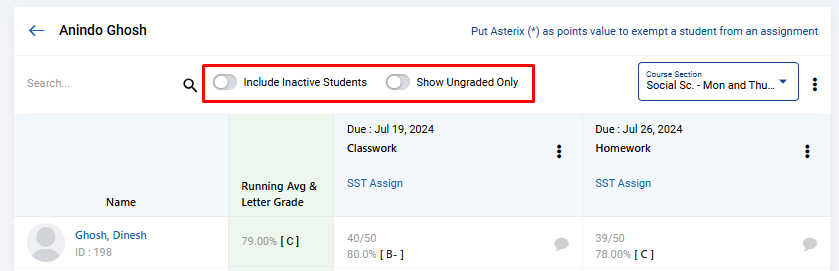
Step 4: Customize the Gradebook View
- Show Ungraded Only : If you want to view only the ungraded assignments, switch on the Show Ungraded Only toggle.
- Include Inactive Students : To include inactive students in the gradebook view, switch on the Include Inactive Students toggle.
Step 5: Edit Grades
- To edit a student's grade for an assignment, click on the three dots next to the assignment.
- Select the Edit Grade option. The gradebook will enter an editable mode.
- Enter the new grade and click Submit to save the changes.
By following these steps, administrators can effectively manage gradebook grades for teachers in CrownSIS, ensuring that student records are accurate and up-to-date.