
How To Take Attendance On Behalf Of Teachers
title: "How to take Attendance on behalf of Teachers" url: https://help.opensis.com/portal/en/kb/articles/how-to-take-attendance-on-behalf-of-teachers path: openSIS Administration > Admin works on behalf of a Teacher
How to take Attendance on behalf of Teachers
How to take Attendance on behalf of Teachers
If a Teacher has not taken attendance, then an Administrator can take the attendance on behalf of the teacher. This guide will walk you through the process of taking attendance on behalf of a teacher using openSIS.
Step 1: Accessing Teacher Functions
To begin, follow these steps to access the Take Attendance function:
This will display a list of teachers for whom you can take attendance.
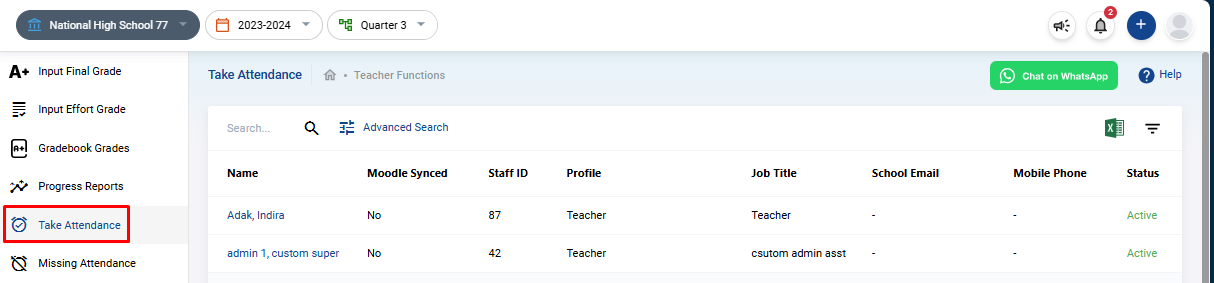
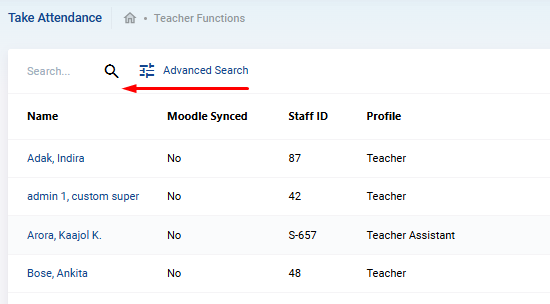
Step 2: Selecting the Teacher
After accessing the Take Attendance section, you’ll see a list of teachers. Choose the teacher for whom you wish to take attendance. This will bring up a calendar view that records the course sections taught by the selected teacher, organized by date.
Step 3: Selecting a Course Section
On the right-hand side of the calendar, you'll have the option to select a course section for which you wish to take attendance. You can navigate through the calendar using the arrows at the top to change the month and view different schedules.
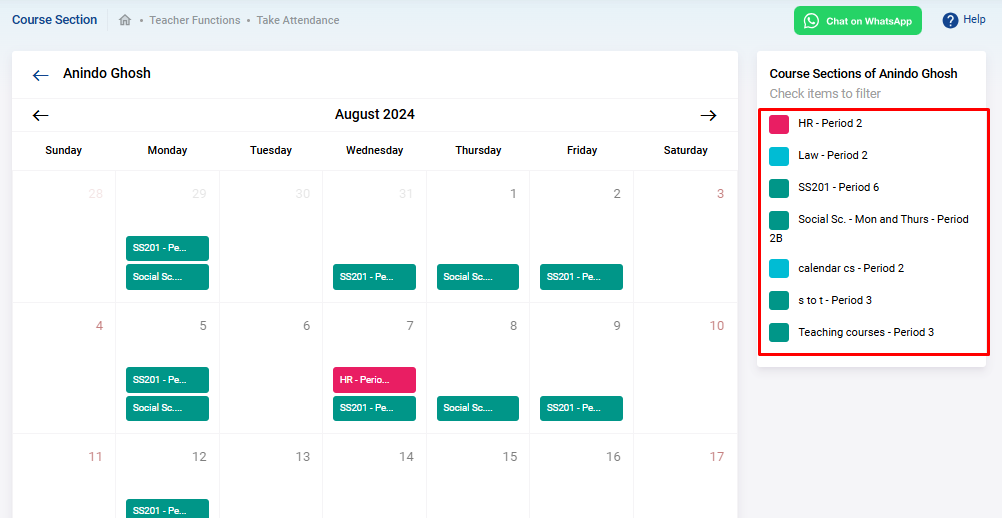
Once you've located the desired course section on the required date, click on the course section button. This will bring up a list of students enrolled in that course section.
Step 4: Recording Attendance
You will now see a list of students enrolled in the selected course section. For each student, you need to select the appropriate attendance status from the following options:
- Present
- Absent
- Half Day
- Medical Leave
- Excused Absence
- Unexcused Absence
After you’ve recorded the attendance for all students, click Submit to save the entry.

Step 5: Reviewing and Finalizing Attendance
Once you've submitted the attendance, it will be recorded for the selected course section and teacher. You can review the attendance records at any time to ensure accuracy and make any necessary adjustments.
By following these steps, administrators can efficiently manage the attendance-taking process on behalf of teachers in openSIS, ensuring that student attendance records are up-to-date and accurately maintained.
If teachers have forgotten to take attendance for a day, missing attendance notification will be generated for the teachers and the administrator. On the administrator's dashboard there will be a missing attendance notification. Clicking on it will ...
As an administrator in openSIS, managing teacher functions, particularly the generation of progress reports, is a crucial responsibility. These reports help track student performance and provide valuable insights for both teachers and parents. Here's ...
Often the school Administrator has to mark student attendance before a teacher takes the attendance for a day. To do so, login as an admin and go to Attendance>>Add Absences Fill out the Attendance Category, Attendance Code and the Attendance Dates. ...
Sometimes an administrator has to override attendance taken by a teacher. An example would be that a student was marked absent by the teacher, but the student was actually out sick and returned with a doctor's note. So the administrator had to go ...
In openSIS, administrators have the ability to manage various teacher functions, including editing gradebook grades for students. This article guides you through the process of accessing and managing gradebook grades for a selected teacher. Step 1: ...