
How To Send A Money Request To Students Or Parents With A Payment Link
How to Send a Money Request to Students or Parents with a Payment Link
Sending a money request to students in openSIS allows you to efficiently collect payments for fees via email. The request includes a payment link, making it easy for students and their parents to complete the transaction. Here’s how to send a money request in openSIS.
Step 1: Access the Billing and Fees Section
-
Log in to your openSIS account.
-
From the navigation menu, go to Billing and Fees.
-
Select the Assign Fees and Request Money sub-menu.
This will display a list of students who are eligible to receive a money request.
Step 2: Select Students
- Review the list of students and select the ones you wish to send the money request to. You can select multiple students at once.

Step 3: Request Money
-
Click on "Request Money":
- After selecting the students, click on the Request Money button located at the top right corner.
-
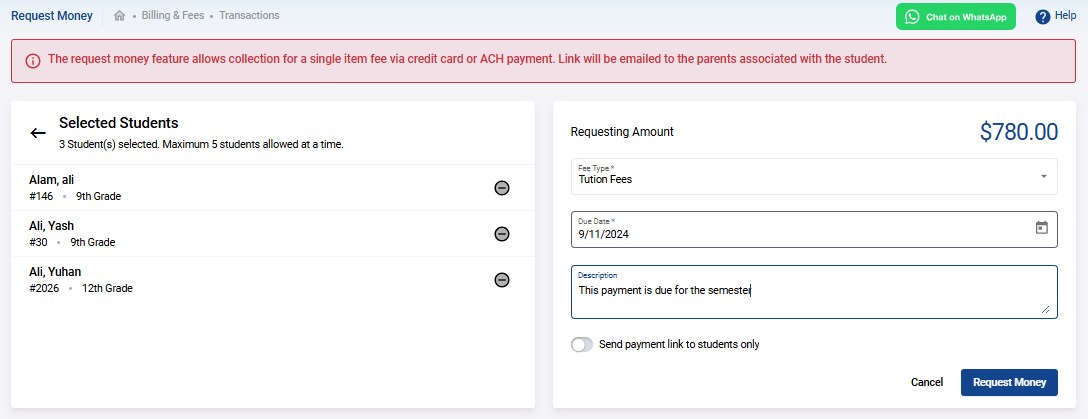
Fill Out the Money Request Form:
- Fee Type : Choose the fee type from the dropdown menu. The available fee types are based on those you’ve set up in the billing setup.
- Description : Provide a brief description of the fee.
- Due Date : Enter the due date by which the payment should be made.
-
Send Payment Link:
- By default, the payment link will be sent to both the students and their parents via email.
- If you want to send the payment link only to the students, turn ON the Send payment link to students only switch.
Step 4: Finalize and Send the Money Request
- Once you’ve filled in the necessary details, review the information, and click on Submit to send the money request.
The payment link included in the email allows payment via credit card or ACH, making it convenient for students and parents to fulfill the payment request.
By following these steps, you can easily send money requests to students with a payment link in their email, streamlining the payment collection process in openSIS.