
How To Manually Register A Payment Of A Fee Against A Student
Manually registering a payment in openSIS ensures that all student fees are accurately tracked and recorded. Here’s a step-by-step guide on how to register a payment against a student's fee.
Step 1: Access the Billing and Fees Section
-
Log in to your openSIS account.
-
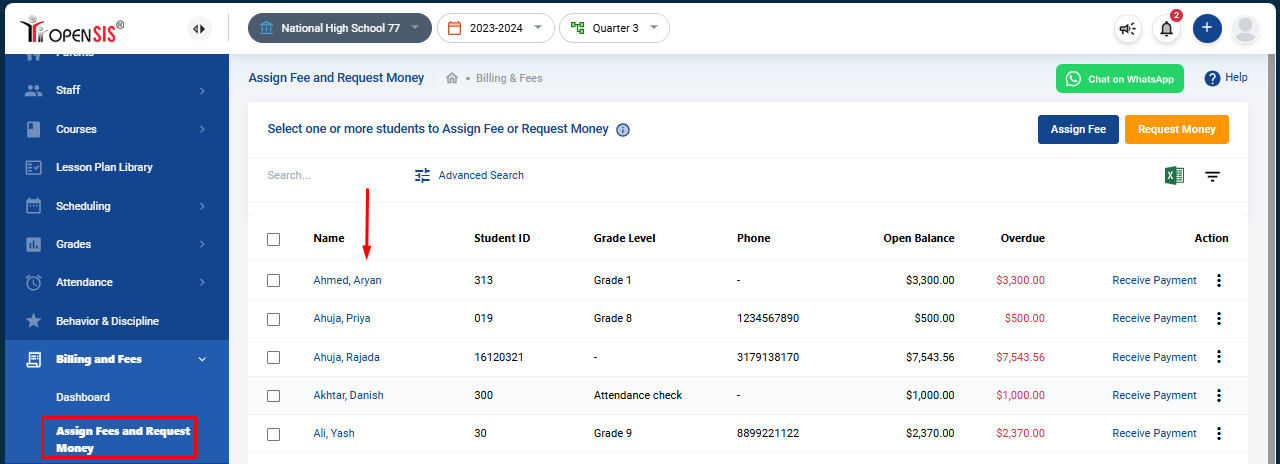
From the navigation menu, go to Billing and Fees.
-
Select the Assign Fees and Request Money sub-menu.
This will display a list of students and their respective fees.
Step 2: Receive Payment
-
Click on "Receive Payment":
- In the row corresponding to the student you wish to register a payment for, click the Receive Payment link.
- This will open a detailed view of all the unpaid fees assigned to that student.

-
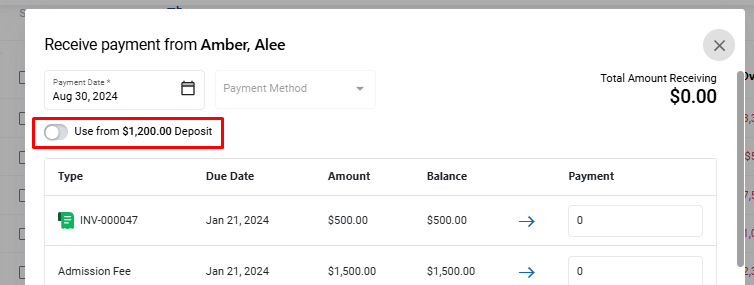
Adjust Fees with Student Deposit (Optional):
- If the student has a deposit that you wish to use to adjust the fee, switch ON the Use the deposit toggle.
-
Enter Payment Details:
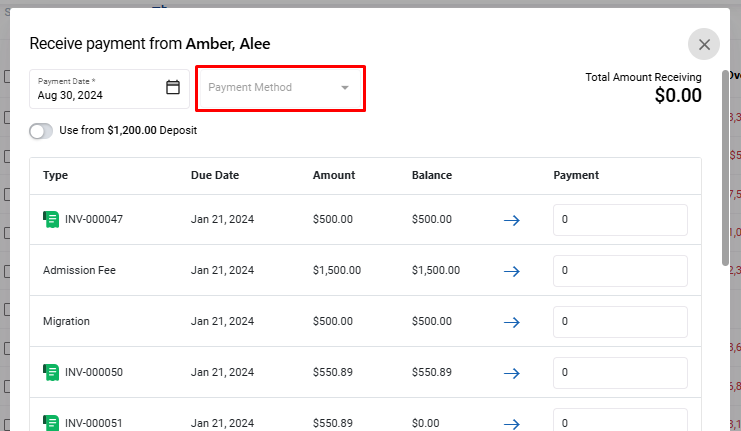
- Enter the Amount Received against each respective fee.
- Select the Payment Type from the dropdown menu, which you have previously set up in the billing settings.
Step 3: Finalize and Save the Payment
- Once you’ve entered all the payment details, review the information.
- Click on Submit to save the payment record.
By following these steps, you can efficiently register payments manually in openSIS, ensuring that all student fee records are kept up-to-date and accurate.