
How To Copy A School In Opensis
title: "How to Copy a School in openSIS"
url: https://help.opensis.com/portal/en/kb/articles/how-to-copy-a-school-in-opensis
path: openSIS Administration > School Information
How to Copy a School in openSIS
How to Copy a School in openSIS
Copying a school in openSIS is a useful feature that allows you to quickly create a new school by duplicating the setup and configurations of an existing one. This can save you time and ensure consistency across multiple schools within your organization. Here’s a step-by-step guide on how to do it.
Step 1: Navigate to School Information
-
Go to Schools:
- From the navigation menu, click on Schools to access the list of schools managed in openSIS.
-
Access School Information:
- Select School Information from the options available under Schools. This will take you to the details page of the current school you wish to copy.
Step 2: Initiate the Copy Process
- Click on "Copy School":
- Under the actual school name, you’ll find a button labeled Copy School. Click on this button to begin the process of copying the school.

Step 3: Configure the New School
-
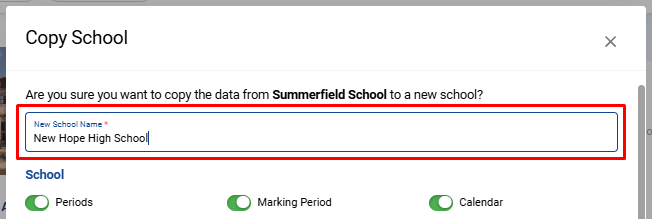
Enter the New School’s Name:
- A modal window will appear where you need to enter the name of the new school. This is the name that will be assigned to the copied school.
-
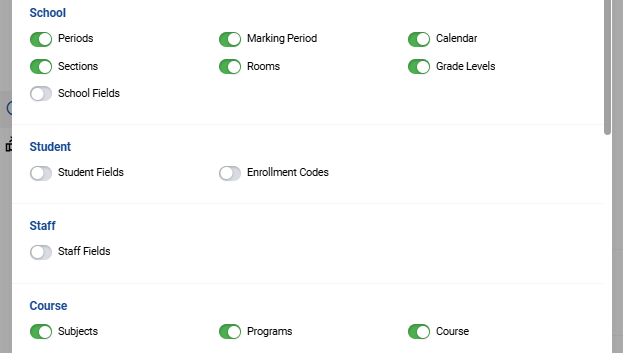
Select Items to Copy:
- In the same modal, you’ll see options to switch on or off the items you wish to copy from the current school to the new school. These items might include things like:
- School Calendar
- Grade Levels
- Student Fields
- Staff Fields
- Courses and Sections
- Switch on the items you want to include in the new school and switch off the ones you do not wish to copy.
- In the same modal, you’ll see options to switch on or off the items you wish to copy from the current school to the new school. These items might include things like:
Step 4: Create the New School
-
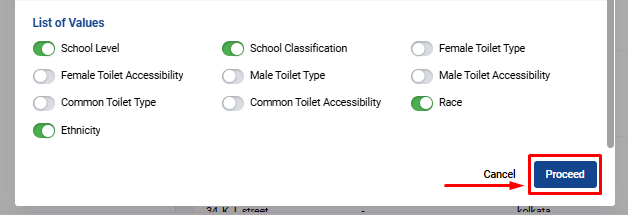
Click on Proceed:
- Once you’ve selected the items to copy, click the Proceed button. This will initiate the creation of the new school with the configurations and data you’ve chosen to duplicate.
-
Confirmation:
- After the process is complete, the new school will be created and added to your list of schools in openSIS, with the selected items successfully copied over.
By following these steps, you can efficiently create a new school in openSIS by copying the setup from an existing one. This feature is particularly useful for managing multiple schools with similar configurations, ensuring that your setup is consistent across the board.