
How To Add A Staff Member To Multiple Schools In Opensis
How to Add a Staff Member to Multiple Schools in openSIS
How to Add a Staff Member to Multiple Schools in openSIS
In openSIS, administrators can assign staff members to multiple schools, allowing them to manage their duties across different institutions. Follow these simple steps to add a staff member to multiple schools.
Step-by-Step Instructions:
-
Access Staff Information:
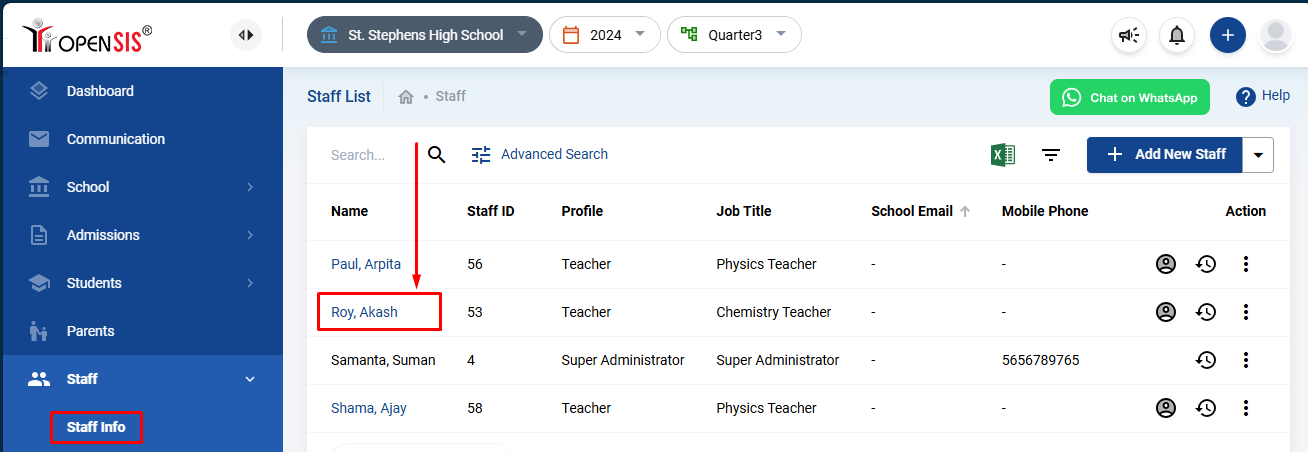
- From the navigation menu , go to Staff and then click on Staff Info.
- You will be taken to a page listing all the staff members registered in the current school.
-
Select the Staff Member:
- From the list, click on the name of the staff member you wish to assign to multiple schools. This will open their staff profile page.
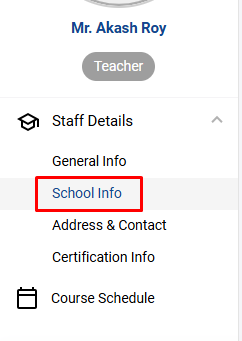
-
Edit Staff Information:
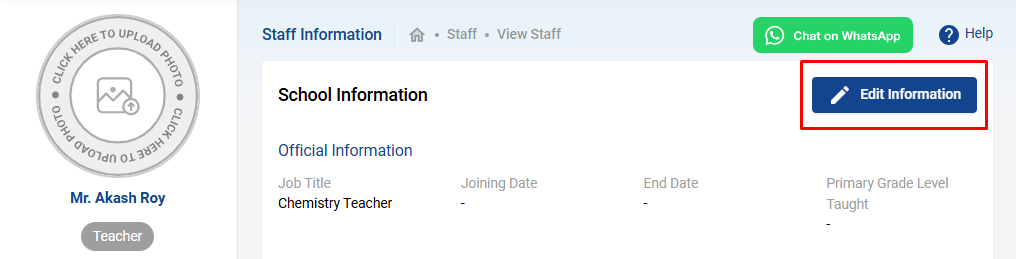
- To add the staff member to another school, click on the Edit Information button located in the top right corner of the page. This will enable the form in editable mode.
-
Add School Info:
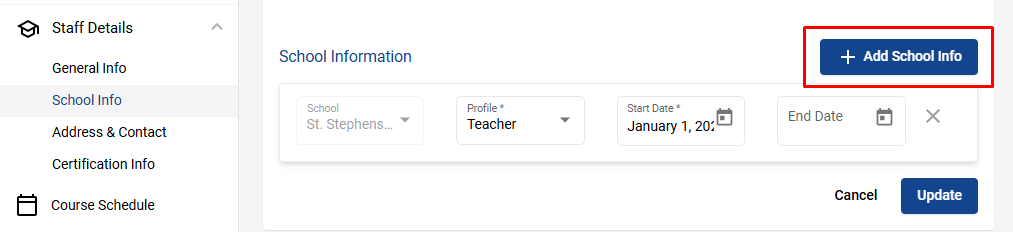
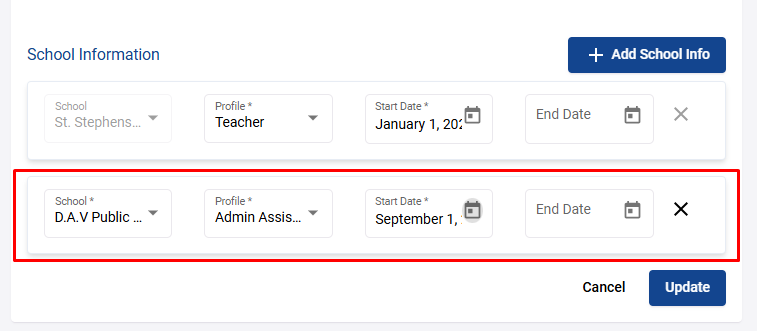
- Under the School Information section, look for the Add School Info button and click it. A new row will appear, allowing you to enter additional school details.
-
Fill in New School Details:
- Select the school in which the staff member will also work from the dropdown menu.
- Specify the staff member’s role or profile of work at that school.
- Enter the start date for the staff member's assignment to the new school.
-
Save the Changes:
- Once you’ve filled out the necessary details, click on Update to save the changes.
Your staff member is now successfully assigned to multiple schools. This allows you to manage their work and responsibilities across various locations without creating multiple profiles.
Assigning a staff member to multiple schools is especially useful for administrators managing staff who work in different locations or have responsibilities spanning more than one institution. With openSIS, this process is made seamless, ensuring all school information is centralized under one profile.