
How To Add A Behavior And Discipline Report Against A Student
How to Add a Behavior and Discipline Report Against a Student
How to Add a Behavior and Discipline Report Against a Student
Managing student behavior is a crucial aspect of maintaining a safe and productive learning environment. In openSIS, you can easily report and track disciplinary incidents involving students. Here's a step-by-step guide on how to add a behavior and discipline report against a student.
Step 1: Access the Behavior & Discipline Section
From the openSIS dashboard, navigate to the Behavior & Discipline section using the left-side navigation menu. This section allows you to track incidents, manage behavior reports, and assign responsibilities for handling discipline cases.
Step 2: Add a New Report
Once in the Behavior & Discipline section, look for the Add New button in the top right corner of the screen. Clicking this button will bring up a list of all the students in the system.

Step 3: Select Students
You will now see a list of students. From this list, select one or more students against whom you wish to file a behavior or discipline report. This flexibility is helpful when the incident involves multiple students. After selecting the students, click the Next button to proceed.
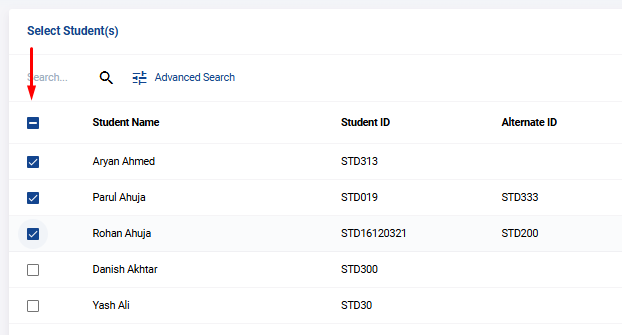
Step 4: Fill in Incident Details
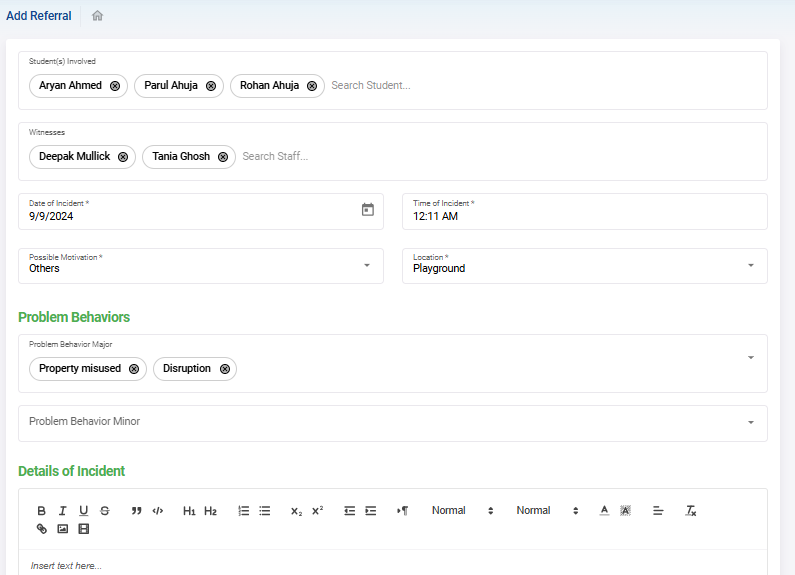
On the incident details page, you will be required to provide specific information about the event. The following fields must be completed to ensure a thorough and accurate report:
- Witnesses : Include the names of any individuals who witnessed the incident.
- Date of Incident : Specify the exact date the incident occurred.
- Time of Incident : Provide the time when the behavior or discipline issue took place.
- Possible Motivation : Record any information regarding the potential motivation behind the student's behavior (e.g., bullying, frustration, misunderstanding).
- Location of Incident : Select the location where the incident took place, such as the classroom, playground, cafeteria, or any other area within the school.
- Problem Behaviors : Document the specific problematic behaviors involved (e.g., disrespect, physical altercation, use of inappropriate language). These behaviors should be selected from predefined categories, or you may use any custom behavior fields that have been added by the school.
- Detailed Description : Provide a clear and detailed account of the incident, including any relevant context and how the behavior unfolded.
Here is a sample form:
Step 5: Assign Report to a Staff Member
On the right-hand panel of the details page, you will see an option to assign the report to a staff member. This could be a teacher, counselor, or administrator responsible for handling discipline issues. Select the staff member to ensure the report reaches the appropriate individual for follow-up action.
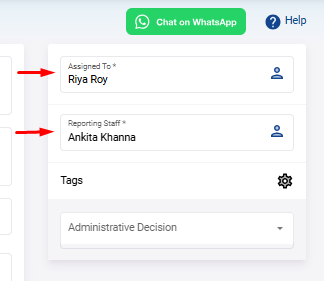
Step 6: Tag the Incident Based on Urgency
You can also tag the incident based on its seriousness or urgency. This feature allows the person in charge to prioritize and manage the issue accordingly. For example, incidents tagged as "Urgent" may require immediate attention, while less serious ones can be handled during a regular review.
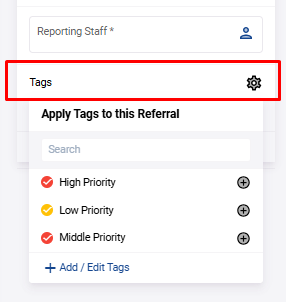
Step 7: Submit the Report
After filling in all the required fields and assigning the report, click the Submit button at the bottom of the page. Your behavior and discipline report will be successfully applied, and the assigned staff member will be notified.
Adding a behavior and discipline report in openSIS is an essential step in maintaining transparency and accountability in handling student behavior. By capturing important details such as the incident’s time, location, witnesses, problem behaviors, and possible motivations, the system ensures that each case is thoroughly documented and managed effectively.
This streamlined process allows schools to monitor discipline cases closely and respond appropriately, fostering a better environment for both students and staff.