Staff Management
Add A Staff Record
In CrownSIS, an Administrator can add a Staff record by clicking on the + sign of the "quick create"**** feature at the upper right corner of the screen.
When you click on '+ Add New Staff ' you get redirected to a page where you can add details of the staff like-
-
General Information
-
School Information
-
Address & Contact
-
Certification Information
-
Course schedule
Start with adding the official Information under the school information of the staff member.
In official information, you can fill in:
- Job Title
- Joining Date
- End Date
- Grade Levels Taught
- Other Grade Levels Taught
- Primary Subject
- School Information ( the values will be filled with pre-filled data of the school. You can add another school by clicking on '+ Add School Info')
Click on the Address & Contact. By clicking the 'Edit Information' you can find the place to fill in your information.
Here you need to fill out forms like:
-
Personal Contact Information ( this will contain all personal contact information of the staff member)
-
Home Address ( this should contain the home address of the staff member)
-
Mailing Address (If the home address and mailing address are the same clicks on the check box same as the home address otherwise you can fill in the details directly)
-
Emergency Contact Information ( here you need to add the contact of anyone whom the school can contact in time of any emergency).
In personal information, you need to fill in information like home****phone, mobile phone, office phone, personal phone, etc.**** as shown below.
Add the home address of the staff member like a street address, country, state, andcity as shown below.
If the home address and mailing address are the same clicks on the check box the same as the home address otherwise you can fill in the different mailing address details.
In the emergency contact information, add the contact of anyone whom the school can contact in time of any emergency.
To add the Certification information of the staff by clicking on '+ Add New Certification'.
By clicking on '+ Add New Certification' a popup field will appear where you can add:
-
Certificate Name
-
Certificate Short Name
-
Certification Code
-
Primary Certification Indicator
-
Certification Date
-
Certification Expiry Date
-
Certification Description
Delete A Staff Record
How to Delete a Staff Record.
Sometimes when a user uploads a group of staff records or enters staff information incorrectly, it is required to delete the records. You can do so by going to the staff list view, clicking on the three-dotted menu in the far right corner of each row, and choosing Delete Staff.
You can only delete the staff record if the staff has no transactional associations like attendance, grades, discipline etc.
If you have entered a staff record and scheduled the staff to one or more courses and then you want to delete the record. Then, go to Main Menu >> Scheduling >> Group Delete and delete the staff schedule. After that the system will allow you to delete the staff record. However, after scheduling if the staff has taken attendance or given grades, then the record cannot be deleted.
How To Add A Staff Member To Multiple Schools In CrownSIS
In CrownSIS, administrators can assign staff members to multiple schools, allowing them to manage their duties across different institutions. Follow these simple steps to add a staff member to multiple schools.
Step-by-Step Instructions:
-
Access Staff Information:
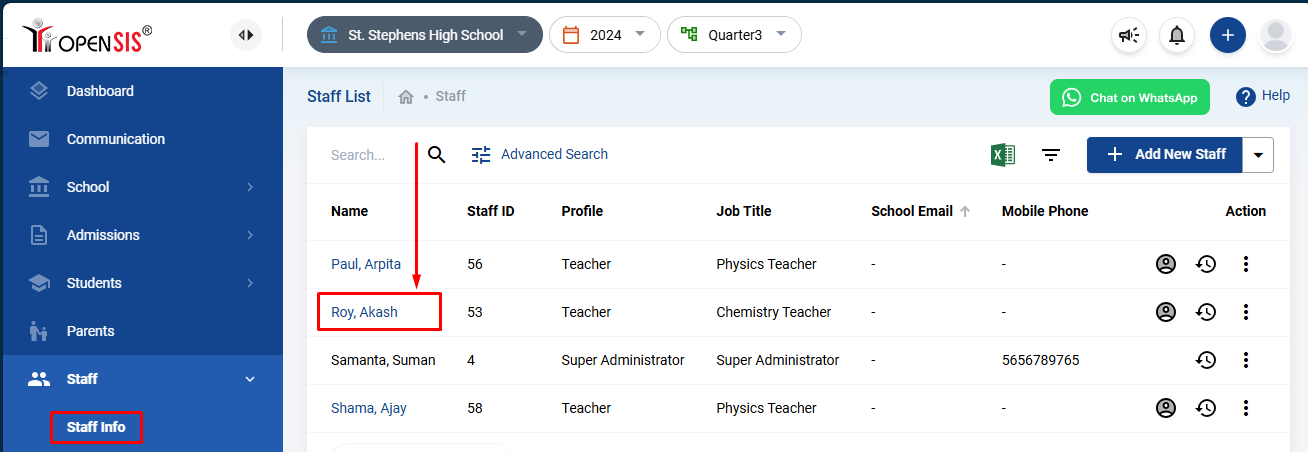
- From the navigation menu , go to Staff and then click on Staff Info.
- You will be taken to a page listing all the staff members registered in the current school.
-
Select the Staff Member:
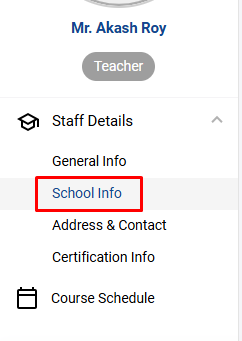
- From the list, click on the name of the staff member you wish to assign to multiple schools. This will open their staff profile page.
-
Edit Staff Information:
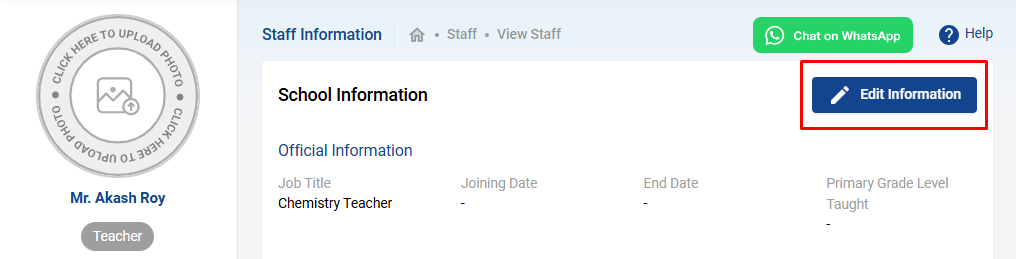
- To add the staff member to another school, click on the Edit Information button located in the top right corner of the page. This will enable the form in editable mode.
-
Add School Info:
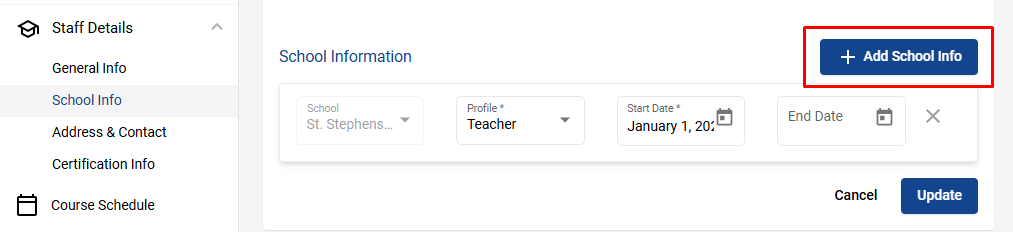
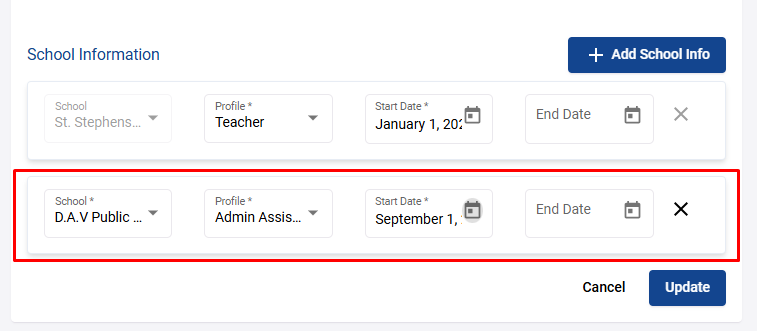
- Under the School Information section, look for the Add School Info button and click it. A new row will appear, allowing you to enter additional school details.
-
Fill in New School Details:
- Select the school in which the staff member will also work from the dropdown menu.
- Specify the staff member’s role or profile of work at that school.
- Enter the start date for the staff member's assignment to the new school.
-
Save the Changes:
- Once you’ve filled out the necessary details, click on Update to save the changes.
Your staff member is now successfully assigned to multiple schools. This allows you to manage their work and responsibilities across various locations without creating multiple profiles.
Assigning a staff member to multiple schools is especially useful for administrators managing staff who work in different locations or have responsibilities spanning more than one institution. With CrownSIS, this process is made seamless, ensuring all school information is centralized under one profile.